7 Days to Die Mods: Install Nexus Mods in One Click with VeryGames
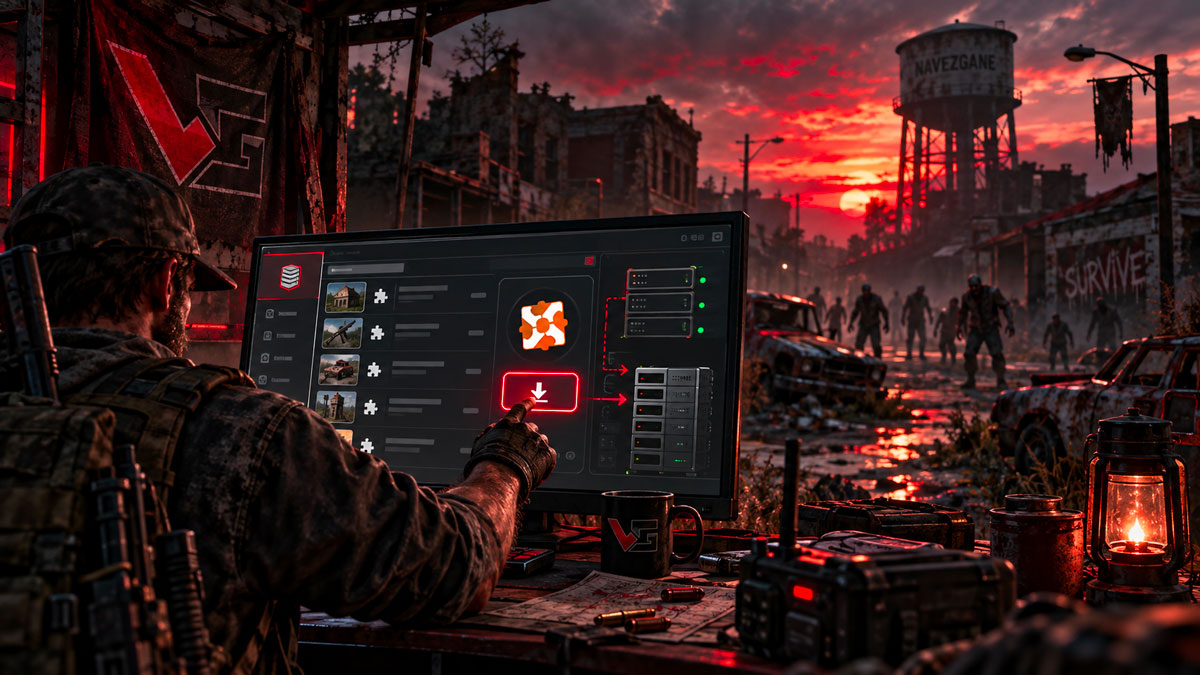
Installing mods on a 7 Days to Die server usually means downloading archives, extracting files and uploading them manually. On VeryGames, compatible Nexus Mods can instead be installed directly from the control panel in just a few clicks.
The VeryGames addon manager brings supported mods together inside the same interface used to manage your server. There is no need to browse through server directories or manually transfer files through FTP for addons already available in the library.
In short: open your server, click Addons, choose a compatible mod from the Available list and click the green install button.
How to install a 7 Days to Die mod with VeryGames
The installation process starts directly from your server's Management page.
- Open your 7 Days to Die server in the VeryGames control panel.
- From the Management page, click Addons.
- Open the Available tab.
- Browse the addon library or use the search field to find the mod you want.
- Click the green download button on the right of the addon.
- Once installed, the addon can be managed from the Installed tab.
The library displays useful information for each addon, including its name, category and provider. For 7 Days to Die, the catalog already includes entries identified as Nexus Mod, with a direct link to the original Nexus Mods page available alongside the installation controls.
No more manual FTP installation for supported mods
Without an automated addon manager, installing a 7 Days to Die server mod generally requires several manual steps. The archive must first be downloaded and extracted before its files are placed into the appropriate server directory, typically inside the game's Mods folder.
Folder structure also matters. A badly extracted archive or an additional directory level can prevent the game from detecting the mod correctly. Server administrators then need to check the files, transfer them through FTP and restart the server.
With the VeryGames addon library, these deployment steps are automated for supported mods. The administrator chooses the addon and launches its installation directly from the panel.
A searchable addon library directly inside the panel
VeryGames does not simply provide an installation button. The Available page acts as a catalog where administrators can browse addons, search by name and sort the available entries.
This makes it much easier to discover server modifications without leaving the management interface. Information buttons are also available next to each entry, while the provider field lets administrators quickly identify where a mod originates.
Need an addon that is not listed? The panel also provides an Addon URL scanner. The interface currently indicates support for URLs from Modrinth, CurseForge and Steam Workshop when using this specific import function.
Nexus Mods are listed directly in the 7 Days to Die catalog
The 7 Days to Die addon catalog already contains numerous entries from Nexus Mods. Examples visible in the panel include gameplay tweaks affecting crafting, inventory stack sizes, loot drops, skill points, generators, solar panels and other survival mechanics.
That means server owners can customize many parts of the survival experience without having to perform the traditional download-and-upload process themselves.
Mod compatibility still matters
One-click installation simplifies deployment, but it does not change the requirements of the mods themselves. Administrators should still check the information provided by the mod author before installing an addon.
Some mods may target a specific version of 7 Days to Die, depend on additional files or require changes on the player side. Major modifications can also affect an existing save or world.
Keeping a backup before making substantial changes to a long-running server therefore remains a good practice.
Modding a 7 Days to Die server becomes much more accessible
7 Days to Die has a large modding ecosystem capable of changing everything from small quality-of-life features to major gameplay systems. For server administrators, however, installing and maintaining those modifications can quickly become one of the more technical parts of running a community.
By integrating addon discovery and installation directly into its management panel, VeryGames removes much of that friction. A supported Nexus Mod can be found, selected and deployed without manually handling its server files.
Create your 7 Days to Die server with VeryGames
Configure your world, monitor your server and install supported addons directly from the VeryGames control panel.
Start your 7 Days to Die server →